Customizing Edit Actions
NotallyX allows you to customize which actions are immediately available in the edit screen's toolbar and bottom bar. This helps you keep your most-used tools just a tap away.
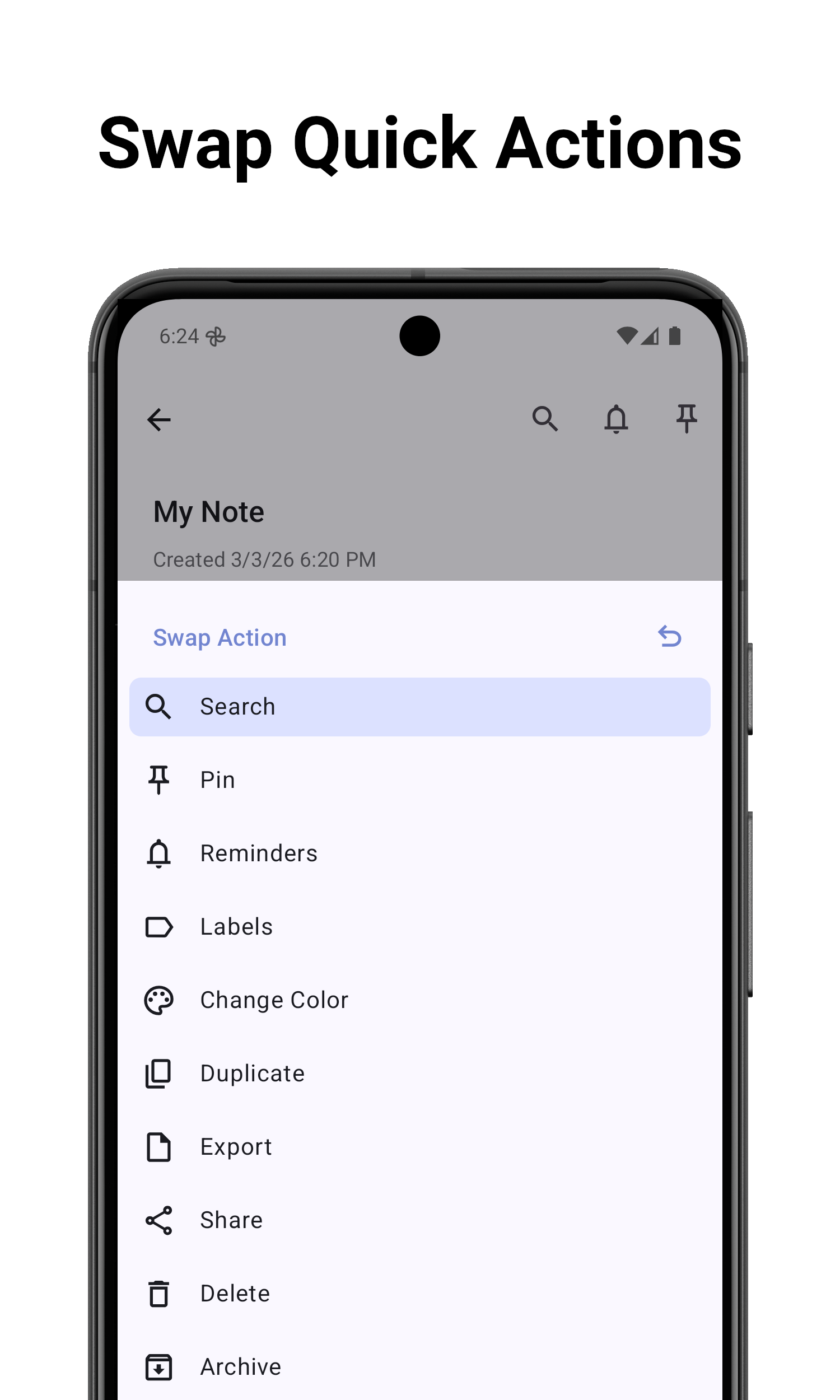
How to Customize Actions
You can swap any action in the top toolbar or the action in the bottom right bar with another available action.
- Open any note to enter the edit screen.
- Long-press on the action icon you want to change.
- An Action Selection dialog will appear, showing all available actions.
- Select the new action you want to place in that position.
The app will remember your choice for all future notes.
Resetting to Default
If you want to reset an action to its default, you can tap the Reset button in the Action Selection dialog.
Finding Other Actions
Not all actions can fit in the bars at once. You can find all other available actions in the More Options menu:
- Tap the three vertical dots (⋮) icon in the bottom right corner of the edit screen.
- A bottom sheet will open with a full list of actions like:
- Search: Find text within the current note
- Pin/Unpin: Keep the note at the top of your list
- Pin/Unpin Note to Status bar: Keep a persistent notification for the current note (see Reminders/Status Bar)
- Reminders: Set or change notifications
- Labels: Categorize your note
- Change Color: Pick a different background color
- Duplicate: Create a copy of the note
- Export: Save the note as a PDF, TXT, or JSON file
- Share: Send the note content to other apps
- Archive: Move the note to the archive
- Delete: Move the note to the trash
- Toggle View Mode: Switch between Edit and Read-only mode
- Convert: Switch between a regular Note and a Task List
Adding Media and Files
While the bars contain general note actions, the plus (+) icon in the bottom left corner is dedicated to adding content to your note:
- 📷 Images: Add photos from your gallery
- 📄 Files: Attach PDFs or other documents
- 🎙️ Audio: Record a voice note
- 🔗 Note Link: Create a link to another note within NotallyX
Related Features
- ✏️ Rich Text Formatting: Learn about text styling options
- 📋 Task Lists and Subtasks: Manage your to-do lists
- ⚙️ Settings: Explore more customization options