Security and Privacy
NotallyX provides several features to help keep your notes secure and private. This guide explains how to use app locking, biometric authentication, database encryption, backup encryption, and secure flag options to protect your data.
Note & App Locking
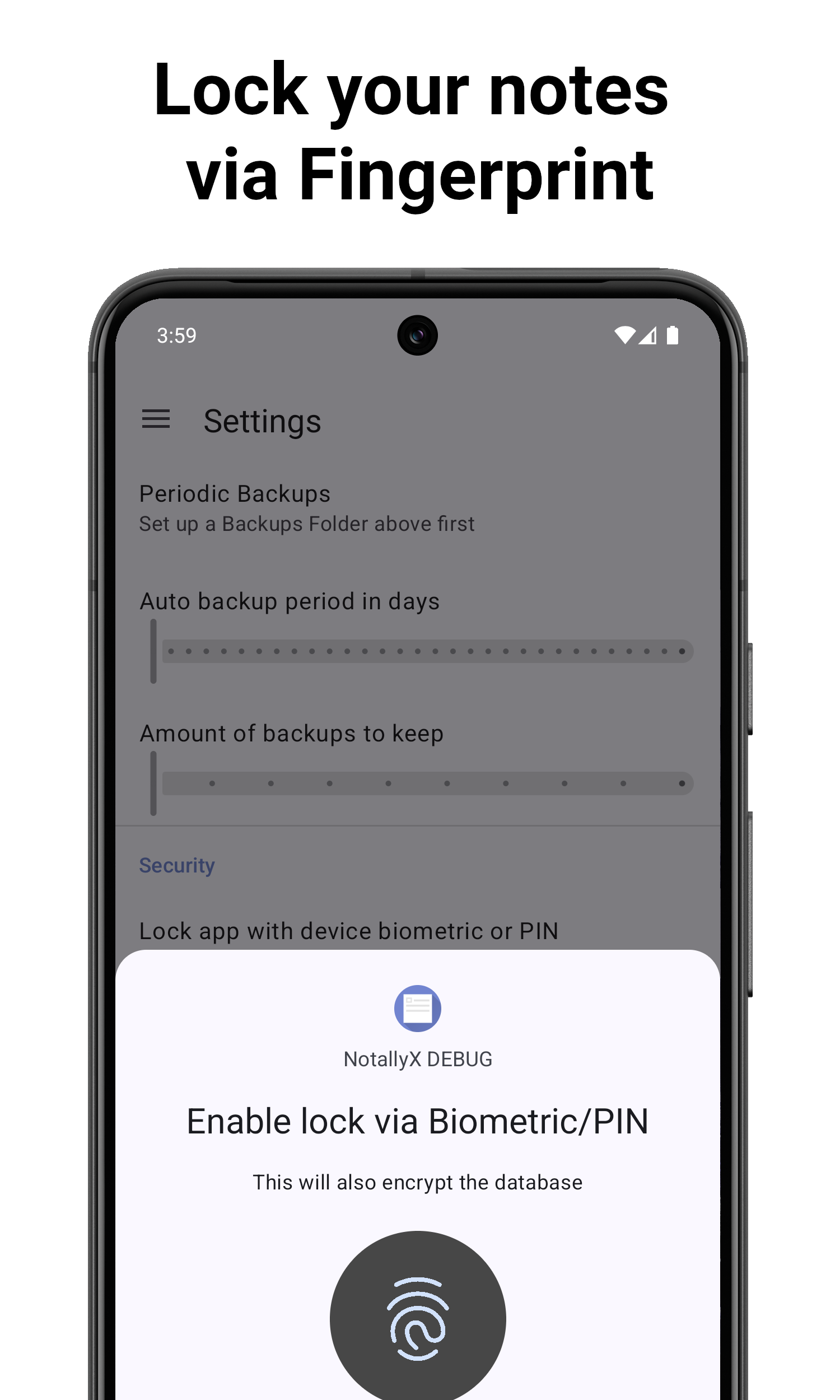
You can lock the app to prevent unauthorized access. It requires authentication (biometric fingerprint/face or device PIN) to view the contents of the app.
Setting Up App Lock
To set up the app lock:
- Open the app settings
- Navigate to Security
- Enable Lock app with device biometric or PIN
- If you haven't set up device security, you will be prompted to do so (at least a PIN or screen lock is required)
- Whenever your device or app is locked, NotallyX will require authentication before granting access to your notes
By default, enabling the app lock protects the user interface with authentication, but does not encrypt the underlying database file on disk.
Optionally, you can enable Encrypt Database via Biometric (powered by SQLCipher). Please note that database encryption is an optional EXPERIMENTAL feature and should be used with caution, as it is not yet fully stable. It is particularly useful if you store your data in a public folder, but you should always maintain regular backups of your notes when using this feature.
Backup Encryption (Password Protection)
You can set a password to encrypt your exported backup files:
- Open Settings > Security
- Tap Backup password
- Enter and confirm your desired encryption password
- Future exported backups will be encrypted with AES using this password
- When restoring from a password-protected backup, you will be prompted to enter the password
Secure Flag (Hide Screen Content)
To prevent sensitive information from being exposed in screenshots or recent app task lists:
- Open Settings > Security
- Enable Hide app content in recent apps / Prevent screenshots
- Screen captures, screen recordings, and previews in Android's recent apps switcher will be blocked for NotallyX
Auto-Backup & Backups
NotallyX can automatically back up your notes to prevent data loss.
Configuring Auto-Backup
- Open Settings > Auto Backups
- Tap Backups Folder and Choose folder to select a folder for backups
- After setting your backups folder, you can:
- Enable auto backups whenever a note is modified (Backup on exit Note automatically)
- Enable periodic background backups at specified day intervals
- Configure the maximum number of previous backups to keep
Manual Backup
You can also create backups manually:
- Open Settings > Backup
- Tap Export backup
- Choose a location and file name for the backup
- Tap Save
Restoring from Backup
To restore your notes from a backup file:
- Open Settings > Backup
- Tap Import backup
- Select the backup file you want to restore from
- If your backup is password protected, enter the correct password when prompted
- Tap Import Backup
Note: Importing a backup merges data and does not delete existing notes or labels.
Data Storage & Privacy
Where Your Data is Stored
NotallyX stores all your notes locally on your device. Your data is not uploaded to any cloud service unless you explicitly use a cloud storage service or WebDAV mount to back up your notes.
Permissions
NotallyX requires minimal permissions to function:
- Storage: Required for saving notes and attachments (or exporting/importing backups)
- Biometric: Optional, used only if you enable biometric authentication
- Microphone: Optional, used only when recording audio notes
- Alarms: Optional, used only when setting time-based reminders
- Notifications: Optional, used for reminder notifications and backup alerts
You can review and manage these permissions in your Android device's settings.
Privacy Considerations
NotallyX does not collect any personal data, analytics, or usage statistics. Your notes remain entirely private on your device. For the up-to-date privacy policy, see Privacy Policy.