Task Lists
NotallyX provides task list functionality to help you manage your to-dos, shopping lists, project tasks, and more. This guide explains how to create and manage task lists effectively.
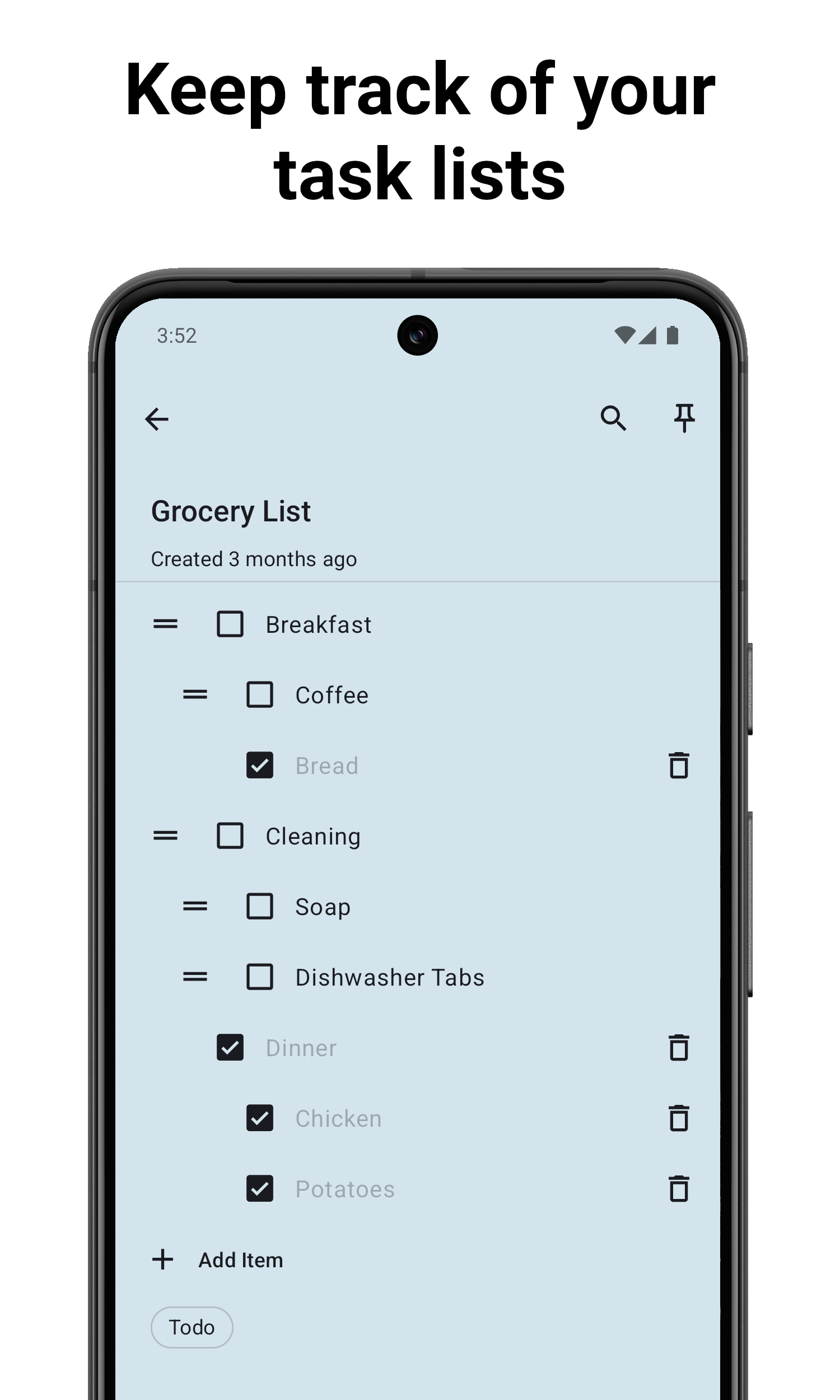
Creating a Task List
- Tap the ✅ button in the bottom right corner
- Start typing your first item
- Tap Enter to add a new item
- Continue adding items as needed
Managing Tasks
Checking and Unchecking Tasks
- Tap the checkbox next to an item to mark it as complete
- Tap again to uncheck it
- By default, checked items are automatically moved to the bottom of the list
Deleting Tasks
Click the trash icon on the right of the item you want to delete
Moving Tasks
- Long press on the 2 horizontal lines on the left of the item you want to move to enter drag mode
- Drag the item to its new position
- Release to place the item
Working with Subtasks
Subtasks allow you to create hierarchical task lists, which is useful for breaking down complex tasks into smaller, manageable steps. To make an item a subtask simply swipe it right, or to undo it swipe it left.
Advanced List Features
Auto-Sorting
By default, NotallyX automatically sorts your task lists by moving checked items to the bottom. You can customize this behavior:
- Open the app settings
- Navigate to "Behaviour" section
- Tap "Sort List items" and choose the desired behaviour
Bulk Actions
NotallyX provides several options for managing multiple tasks at once. To access them inside of a task list note, tap the "..." in the bottom right corner:
- Delete checked items: Tap the three-dot menu and select "Delete checked"
- Check All items
- Uncheck All items
Moving Groups of Tasks
You can move a parent task along with all its subtasks:
- Long press on the parent task
- Drag to the desired position
- Release to place the entire group
Convert to Text note
If you want to convert your task list into a regular text note:
- Tap the "..." in the bottom right corner
- Tap "Convert to Text Note"
- For every task item a line of text will be added to the text note
Related Features
- Rich Text Formatting: Learn how to format text in your notes
- Labels and Organization: Discover how to organize your notes effectively